

Go to the Front End Manager tab → Agency Editor subtab.
Scroll to the Branding section.
Click the Upload button, located below the Agency Logo.
Select the logo from your files. Logos can be no larger than 1000 x 1000 pixels and must be JPG, JPEG, or PNG files.
Click the Update button at the bottom of the page to save your logo.
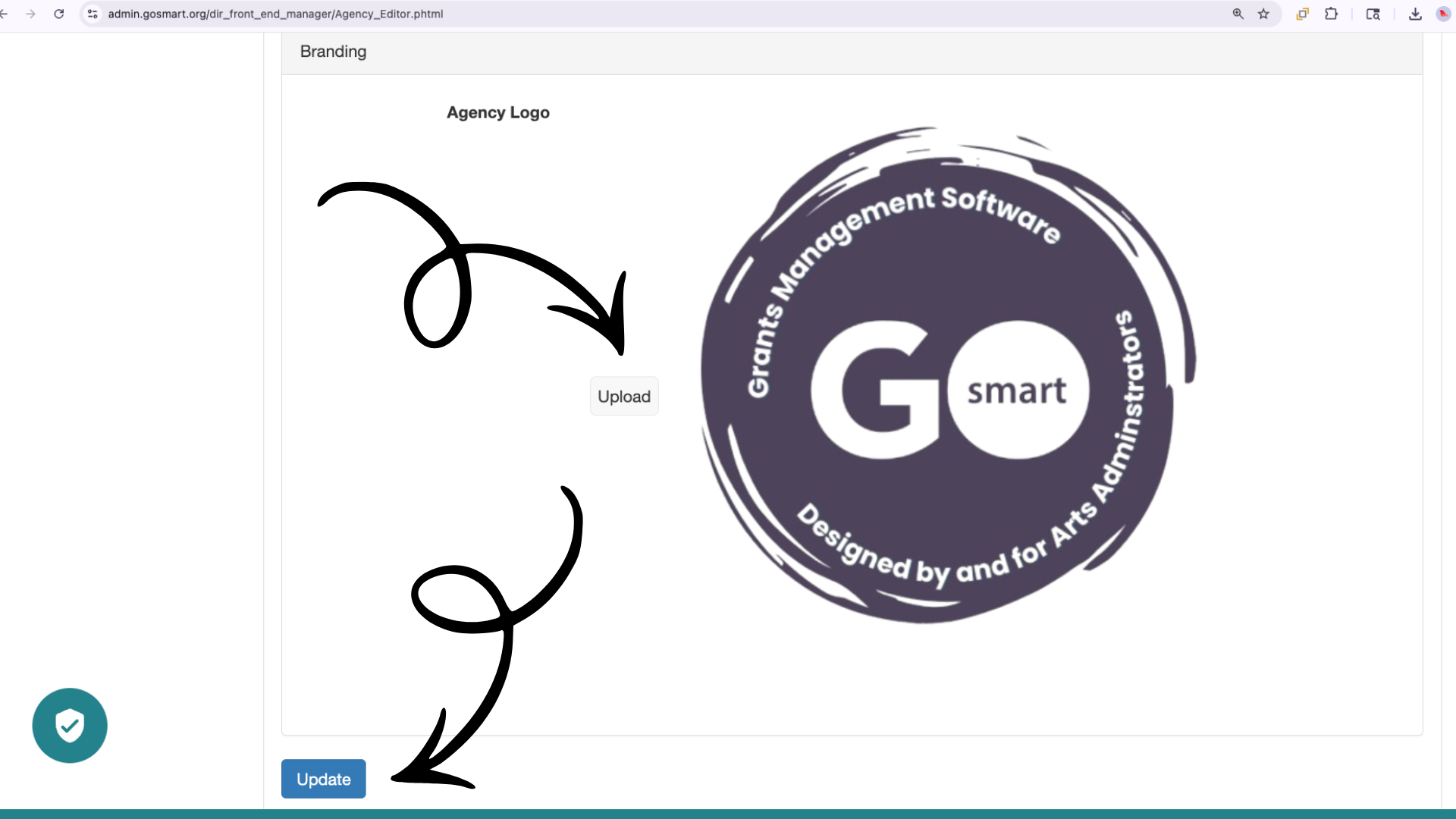
📸 Screenshot of the Agency Editor with two arrows pointing to the Upload and Update buttons.
💡 Tips:
Use an Online Image Size Finder to see your picture's pixel size.
Medium-sized images are best for your logo. Large images take up too much header space, and small images may be hard to read.
We recommend a PNG file for the logo image.
♿ Accessibility & Contrast
While not required for the upload to work, the GO Smart team strongly recommends that your logo meets the current Web Content Accessibility Guidelines (WCAG).
💡 Tip: Use an Online Contrast Checker to ensure your logo is easy to see against your portal's background color.
