

Click Add/Edit Columns
Check the box next to the Tags option.
Click Save.
Click Add Tag textbox on the application line.
Type tag name.
Click Add Tag.
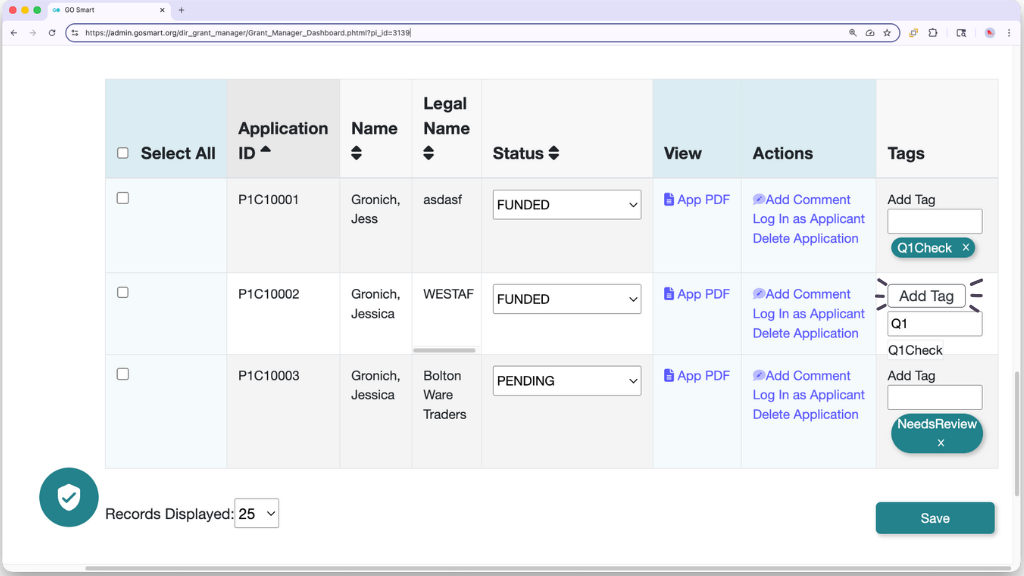
📸 Screenshot of the Grant Manager Dashboard with the Tags column added, highlighting the Add Tag button appearing as a tag is being typed.
📝 Notes:
Add up to 5 tags per application.
Use up to 12 alphanumeric characters per tag.
Click X on the tag bubble to remove. Saving is not required.
💡 Tip: Search and select existing tags in the textbox. Matching tags appear automatically.
