

There are two kinds of statuses:
Functional statuses — these determine whether the applicant can edit a form, submit it, or access a next-step form.
Tracking statuses — these simply mark where the applicant is in the process and do not change access.
Some statuses update automatically based on applicant actions; others are set by an administrator. Whenever a status affects access, you’ll see those details under Form Availability. Learn more about editing an application's status in this tutorial.
✍️ Intent to Apply Statuses
The Intent to Apply feature is an optional form before the main application. If you use it, these statuses will show up on your Grant Manager Dashboard.
Intent to Apply Started
ℹ️ Description: Indicates the applicant has clicked Start Intent to Apply to begin the Intent to Apply form.
➡️ Caused by: The applicant clicking 'Start Intent to Apply.'
🔓 Form Availability: Open until submission or deadline.
Intent to Apply Received
ℹ️ Description: Indicates the Intent to Apply form has been submitted and is now read-only.
➡️ Caused by: The applicant clicking 'Submit'.
🔓 Form Availability: Read-only.
Intent to Apply Approved
ℹ️ Description: Indicates the Intent to Apply has been approved, allowing access to the main application (if approval is required).
➡️ Caused by: The admin moving the application to the Intent to Apply Approved status.
🔓 Form Availability: Intent to Apply is still read-only, but allows access to the main application after the open date passes.
Intent to Apply Declined
ℹ️ Description: Indicates the Intent to Apply was not approved.
➡️ Caused by: The admin moving the application to the Intent to Apply Declined status.
🔓 Form Availability: Read-only.
💡 Tip: To reopen an Intent to Apply, change the status back to Intent to Apply Started.
📋 Application Statuses
These statuses track and manage the progress of applicants in the main application form.
In Progress
ℹ️ Description: Indicates the applicant has started the application and can continue editing until the deadline.
➡️ Caused by: The applicant clicking 'Start'.
🔓 Form Availability: Editable until submission or application deadline.
Draft Review
ℹ️ Description: Indicates the applicant has requested a draft review. This feature can be enabled in Grant Editor → Program Cycles Editor.
➡️ Caused by: The applicant clicking 'Save and Submit Draft'.
🔓 Form Availability: Editable until submission or application deadline.
Draft Review Complete
ℹ️ Description: Indicates the admin has completed a draft review. Feedback should be shared externally.
➡️ Caused by: The admin moving the application to the Draft Review Complete status.
🔓 Form Availability: Editable until submission or application deadline.
Received
ℹ️ Description: Indicates the application has been submitted and is now read-only.
➡️ Caused by: The applicant clicking 'Submit'.
🔓 Form Availability: Read-only.
Incomplete
ℹ️ Description: Allows the applicant to edit and resubmit before the deadline.
➡️ Caused by: The admin moving the application to the Incomplete status.
🔓 Form Availability: Editable until submission or application deadline.
Exception
ℹ️ Description: Allows the applicant to edit and resubmit after the deadline.
➡️ Caused by: The admin moving the application to the Exception status..
🔓 Form Availability: Editable after the application deadline until submission.
Withdrawn / Ineligible
ℹ️ Description: Indicates the application is requested to be withdrawn by the applicant or marked ineligible by the admin.
➡️ Caused by: The admin moving the application to the Withdrawn or Ineligible status.
🔓 Form Availability: Read-only.
Approved
ℹ️ Description: Indicates the application has been approved.
➡️ Caused by: The admin moving the application to the Approved status.
🔓 Form Availability: Read-only.
Funded
ℹ️ Description: Marks the application as funded/awarded and allows access to the interim or final reports, depending on the program's forms.
➡️ Caused by: The admin moving the application to the Funded status.
🔓 Form Availability: Can access interim or final reports after the open date(s) pass.
Declined
ℹ️ Description: Indicates the application has been declined.
➡️ Caused by: The admin moving the applicant to the Declined status.
🔓 Form Availability: Read-only.
💡 Tip: If an applicant needs to keep working after the deadline, set their form status to Incomplete (before deadline) or Exception (after deadline). Confirm that the cycle is set to Show first.
📄 Interim and Final Report Statuses
Interim and Final Reports are optional post-application forms. If you use them, these statuses will show up on your Grant Manager Dashboard.
Interim Report Received
ℹ️ Description: Indicates the interim report has been submitted and is now read-only.
➡️ Caused by: The applicant clicking 'Submit'.
🔓 Form Availability: Read-only.
Interim Report Approved
ℹ️ Description: Indicates the interim report has been approved, and the final report is now accessible.
➡️ Caused by: The admin moving the application to the 'Interim Report Approved' status.
🔓 Form Availability: The Interim Report is now read-only, but the applicant can access the final report once the open date passes.
Final Report Received
ℹ️ Description: Indicates the final report has been submitted and is now read-only.
➡️ Caused by: The applicant clicking 'Submit'.
🔓 Form Availability: Read-only.
Final Report Exception
ℹ️ Description: Allows the applicant to edit and resubmit the final report after the deadline.
➡️ Caused by: The admin moving the application to the Final Report Exception status.
🔓 Form Availability: Editable after deadline until submission.
💡 Tips:
To allow the applicant to edit the Interim Report, move them back to the Funded status.
To allow the applicant to edit the Final Report, and there is NOT an Interim Report, move them back to the Funded status.
To allow the applicant to edit the Final Report, and there is an Interim Report, move them back to the Interim Report Received status.
❓Status FAQs
Why is my applicant unable to see or access the application?
The first step is to check your application or report settings.
Log in to the admin side of GO Smart at admin.gosmart.org.
Go to the Grant Editor tab and choose the Cycle Pages subtab.
Choose the Program and Cycle.
Click the Applicant Access & Dates tab.
Review this checklist:
Display: Verify this is set to Show. If not, applicants cannot access the application or its reports.
Invite-Only: If set to Yes, the applicant must click the Have an invite-only password? Enter it here. link on their Grant Applications & Forms page and enter the Invitation Code into the Add invite-only password box to see the cycle.
Profile Types: Check the Accepted Profile Type(s) dropdown and verify what your applicant is registered as.
You can add the User Type column to the Grant Manager Dashboard to check this.
Dates: Ensure your Open Applications date is in the past and the Application Deadline date is in the future.
🎥 30-second video showing the Grant Editor tab → Cycle Pages subtab and displaying all available options in the Applicant Access & Dates section that could impact an application's visibility.
📝 Notes:
If the Intent to Apply, Interim, and/or Final Report is inaccessible, double-check the Offer X setting and ensure the dropdown is set to Yes. Verify the corresponding dates are appropriate (see video above).
Only agencies using Enhanced Profiles can have users designated as an Individual or Organization. Contact the GO Smart team if you are unsure of your settings.
My applicant can click the Start button, but sees a blank application when it loads.
If you are using an Intent to Apply page, you may need to move your applicant through the system statuses.
Go to the Grant Manager Dashboard and select your program and cycle.
Find your applicant using the search and filter tools.
In the Status column, change their status to Intent to Apply Started and save the page.
In the Actions column, click the Log In as Applicant button.
While logged in as the applicant, find the cycle and click 'Edit Intent to Apply'.
Go to the very last page and click 'Submit'.
Return to the Grant Manager Dashboard tab.
Move the application to the Intent to Apply Approved status and save the page.
Log in as your applicant again and make sure that you see an Edit button for the main application and that clicking it loads the application.
⚠️ Alert: Do not hesitate to contact the GO Smart team for additional support or troubleshooting.
Where can applicants see their current status?
Applicants can view their status on their Grant Applications & Forms tab for each active cycle they have applied to. For each cycle block, they will see their status in the upper right-hand corner and near their application number.
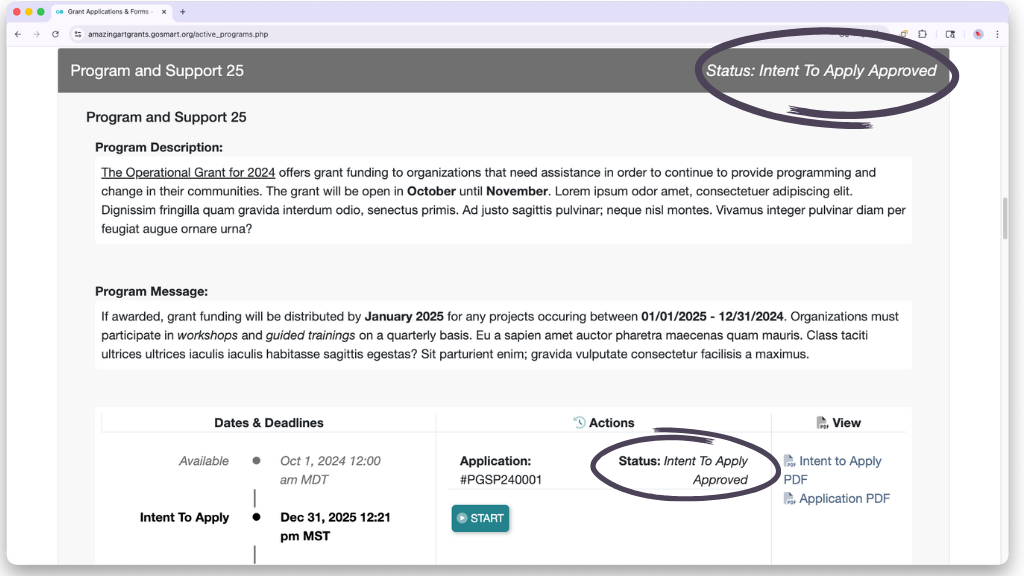
📸 Screenshot of a cycle on the applicant's Applications & Forms dashboard. The two areas where a status is shown are circled.
💡 Tip: If you do not want your applicant to see their current status while you make administrative changes, temporarily hide the cycle. Ensure that any relevant status mailers are also temporarily set to Inactive.
